Account Approvals
Account Administrators Guide
This article is relevant for users who are designated to Approve purchases for their organization.
About the Approval Process
When you place an order, it may have to go through an approval process. A designated person (an approver) has to sign off on the order. For large orders, more than one level of approval is required, for example, by a series of managers. Each approver is associated with a level of approval (with 1 being the lowest level). So if three levels of approval are required, a level 1 approver must first sign off on the order, then a level 2 approver, and finally the level 3 approver. Not until all three sign-offs are complete is the order considered approved.
An order may require approval because of its price, for example, it is above a certain amount. Sometimes if you remove an expensive item from the cart you can avoid going through the approval process.
Some orders may require approval if you enter a particular cost center or accounting code as your payment method.
In addition, a product that you order may require approval. For example, some products like corporate reports may require scrutiny and approval to ensure their contents are correct; other products may have limited distribution so require approval when you order them. Product approvals are not tied to price.
When an order you place requires approval, the Order Confirmation page shows the Status of the order as Approval required. (The Order Confirmation page is the last step in the checkout process, but you can also open this page by clicking an order number in your order history.) You can click Approval required on the Order Confirmation page to open the Approval Detail window. This lets you see why the approval is required, how many levels of approval are required, and the status of the approvals. You also have the option of contacting an approver by e-mail to follow up on the status of the approval.
Note: The Approval Detail window may list more than one approver at the same level, for example, three approvers may be level 1 approvers. In this case, only one approver at that level has to approve (or decline) the order before it moves onto the next level.
After your order goes through the approval process, you typically receive an e-mail informing you if your order was approved or declined. If the approvers in your organization review the jobs that make up orders, an approver may make changes to a job before approving it so the final job may not be exactly what you ordered. For example, an approver might change the quantity or select different Media for a job. In addition, when reviewing the jobs that make up an order, an approver may decline some jobs but approve others. When the result is a mixture of approved and declined jobs in an order, the approver can choose to decline the entire order or can remove declined jobs from the order and just leave the approved jobs in the order. Depending why an order or job was declined, you may want to place the order again so it gets approved the next time.
Notes: When an order requires more than one level of approval, you will be notified by e-mail about the status of the approval after the highest level approver is done and the approval process is complete. Only one e-mail is sent to you, not one for each level of approval. If an approver makes a change to your original order that requires a price quote from the print shop, the original payment information is removed from the order and the order is sent to the print shop for the price quote. After you receive the quote and accept it, the order may once again need to go through the approval process. If you happen to be an approver, and your order needs approving, you will receive an e-mail notification, and you can then approve your own order.
Reviewing and Handling Pending Approvals
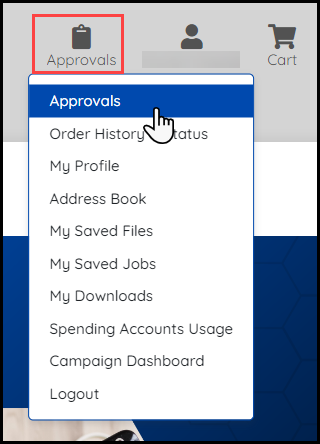
If you are a designated approver, you must review any orders that are pending your approval and handle them by approving or declining them. When orders are waiting for your approval, you are notified by e-mail with a link to the Approvals page. Also, the Approvals page can accessed through the Approvals link next to the My Account menu or through an Approvals link in the My Account menu.
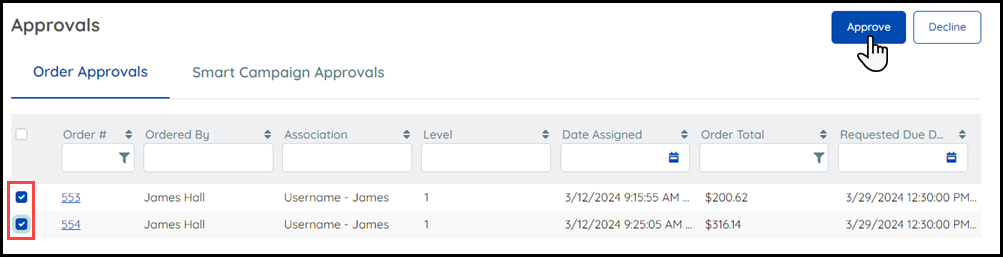
Use the Approvals page to review all pending orders and approve or decline them. (This page is available only if you are a designated approver.) The pending orders are listed in chronological order. You can also filter each column using search, date range, or sort options.

As an approver you can always review entire orders. Depending on your organization, you may also be able to review the individual jobs that make up an order. In this case, you can open the jobs and make some changes to them if necessary. (What you can change depends on the product being ordered; not all jobs can be edited.) If you end up with a mixture of approved and declined jobs in an order, you can either decline the entire order or remove the declined jobs from the order and submit the order with just the approved jobs.
The procedure is different when you review entire orders versus review the jobs that make up orders.
To approve orders from the Approval page
- On the Approvals page, click the check-box next to the order(s) you want to either approve or decline.
- Click the Approve button to approve the selected orders, or click the Decline button to decline the selected orders.
To review entire orders
- On the Approvals page, click the number of an order in the Order # column.
- Select from the Approve/Decline toggle.

- Review the details and price of the order to determine whether to Approve or Decline it.
- By default, an e-mail is sent to the buyer after you accept or decline the order. If you do not want e-mail sent to the buyer, disable the Send e-mail notification to buyer that approver has updated this order check box.
- (Optional) Enter a reason for approving or declining the order.
- Click Decline or Approve.

To review the jobs that make up orders
Note: If your organization does not support job-level approvals, you can only approve or decline entire orders, not the jobs that make up orders.
- On the Approvals page, click the number of an order in the Order # column.
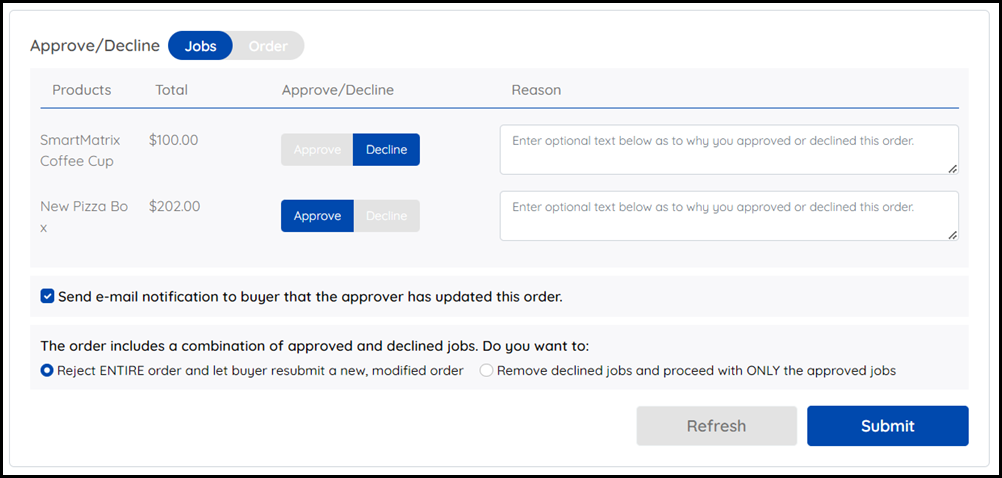
- Select Jobs from the Approve/Decline toggle.

Note: If more than one level of approval is required, a single e-mail is sent to the buyer after the approval process is complete (not after every level of approval).
Tip: Whichever way you decide to handle the order, reasons for your decision will help the buyer understand why the order was completely or partially declined.
- Review each job in the order. To review or change a job, click its name. (If the name of the job is not a link, you cannot review or edit it.) Depending on the job, you may be able to change the quantity or print options such as Media or binding. You may want to make changes to reduce costs or to meet corporate standards.
- To accept a job, leave Approve selected; to reject a job, select Decline.
- (Optional) Enter a reason for approving or declining the job. Although a reason is optional, it is often a good idea to provide one. For example, if you approved a job but made changes to it, the buyer will find out what you changed; if you declined a job, the buyer will know why. This can help buyers to make better choices the next time they place an order.
- By default, an e-mail is sent to the buyer after you click Submit. If you do not want e-mail sent to the buyer, disable the Send e-mail notification to buyer that approver has updated this order check box.
- If the result is a mixture of approved and declined jobs, decide how to handle the order by selecting one of these before selecting Submit:
- ENTIRE order and let buyer resubmit a new, modified order
- ReReject move declined jobs and proceed with ONLY the approved jobs (be aware that if you select this option, the declined jobs are permanently removed)
Key Considerations
Approval Editing
- If you make a change to the order (for example, increase the order quantity) that causes the total price to exceed the buyer's spending account, a warning message is displayed and the spending account balance is shown to the right of the Submit button. Edit one or more jobs in the order to decrease the total price so it does not exceed the spending account balance.
- If you make a change to the job which requires a price quote from the print shop, the original payment information is removed from the order and the order is sent to the print shop for the price quote. After the buyer receives the quote and accepts it, the order may once again need to go through the approval process.
- If you make changes that affect the price of the job, the Order Confirmation page is updated with the changed price.
- Some jobs cannot be reviewed or edited during the approval process.
- You cannot alter the buyer's product selection from a product matrix.
- If you are a product-level approver, you can only edit, approve, or decline the products for which you have permission to do so.
- If you want to change the EDDM Map selection specified by the buyer, the buyer's map selection will not be retained. Thus, you will have to make the map selection again. If you do not want to make any change to the data source, you can proceed with the edit.
Products of the following types can be edited by approvers when job level approvals are enabled:
- Ad hoc.
- VDP batch (including DirectMail workflows).
- Kit.
- Non-Printed Product: approver can edit the quantity.
- StaticVDP: FusionPro and SmartCanvas VDP (single-record and batch).
- Product Matrix: Approver can edit the resulting product selected from a Product Matrix (if one of the product types listed above), see Note on Approver Editing and Product Matrix Products.
To summarize approval workflow with product matrix products:
- If the matrix product contains only non-printed products (NPP), you can change the product matrix attributes.
- If the matrix product contains only printable products (e.g., static products), you can edit the products but not change the product matrix attributes. The print product is treated like a standalone product.
- If the matrix product contains both NPP and printable products, editing a print product item in the order will remove the association to the matrix product.
The following products are not supported for approver editing:
- Cross Media Marketing (CMM) including: Campaigns, Documents, SMS, Email.
- Product Matrix selector, see Note on Approver Editing and Product Matrix Products.
- Design Studio.
- Custom products (product types included only as a customization) including: HP Wall Art, Chili publish.
Important: Note Approver Editing and Product Matrix Products. When a product matrix product contains printable items (e.g., static product), the individual products can be edited (i.e., using the Visual Product Builder). Note that the product matrix attributes themselves cannot be changed (i.e., the approver cannot re-select attributes using the matrix selector but only the product that resulted from the buyers' selections). Editing a print product in a product matrix will remove the association of the print product from the matrix product.